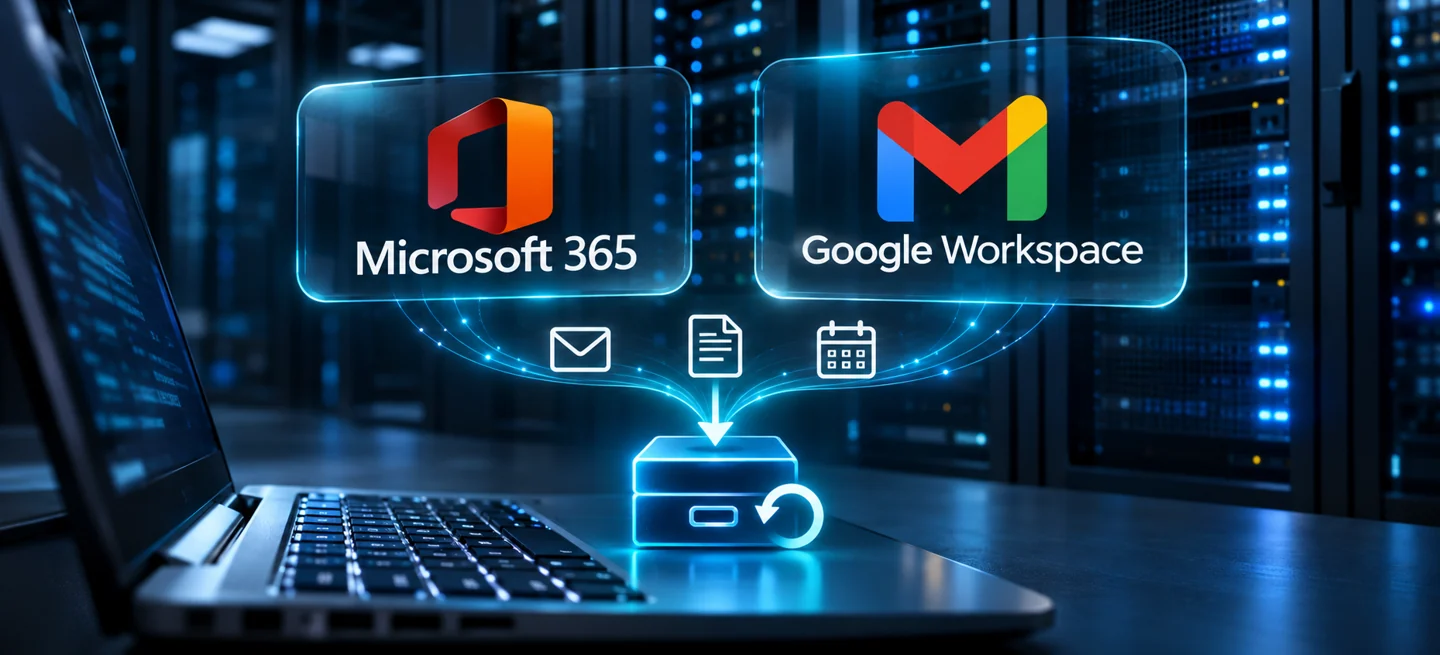
Microsoft and Google provide resilience, retention and recovery mechanisms. Complementary backup is chosen according to the data to protect, the required history and recovery capabilities.
Being in the cloud does not mean recoverable in every situation
An employee deletes a shared folder. A mailbox is emptied. An important change is discovered only weeks later. In each case, the question is the same: which copy exists, from what date, and how can it be recovered?
Native protections are useful. Their scope depends on the service, licences, settings and elapsed time. Microsoft also offers a dedicated service, Microsoft 365 Backup, so saying that “Microsoft does not back up your data” would be inaccurate. Check which protections your organisation has actually subscribed to and configured.[1]
Synchronisation, recycle bins and retention: different roles
| Mechanism | What it does | What to check |
|---|---|---|
| Synchronisation | Keep the same files on multiple devices. | Deletion or modification can propagate too. |
| Recycle bin and versions | Recover items or earlier states within the service’s limits. | The recovery period, permissions and scope. |
| Retention and archiving | Keep certain content according to defined rules. | Retention does not guarantee an identical restoration inside the application. |
| Dedicated backup | Keep recovery points according to a backup policy. | The data actually covered, its destination and possible recovery operations. |
For example, Google documents administrative recovery of Drive files within 25 days after a user empties the recycle bin, subject to conditions and exclusions. Data retained by Vault may remain searchable and exportable without being directly restorable to the user’s Drive. These mechanisms serve different purposes.[2]
Start with the data your business depends on
The number of accounts is not enough to define a backup. Also consider shared mailboxes, common spaces and data no longer owned by an active employee.
Beyond the individual mailbox
- Exchange Online: supported messages, attachments, contacts and calendars.
- Shared mailboxes, archives and groups: check inclusion and the necessary permissions.
- OneDrive: work folders and documents belonging to the relevant users.
- SharePoint: sites and libraries hosting shared documents.
- Teams: identify the files and collaboration elements actually covered, as they rely on several services and APIs.
Protect personal and shared spaces
- Gmail: messages and attachments from selected accounts.
- Drive and shared drives: files and collaborative documents, checking backup and recovery formats.
- Contacts, calendars and tasks: include the items useful to the teams’ work.
- Chat and Meet: review supported and accessible conversations, attachments, recordings and transcripts.
This list helps define your needs. It does not mean that every item is included in every CLURK offer. Scope depends on modules, licences, permissions, versions and API limits. Backed-up content is not a complete copy of the tenant, all its settings and all its applications.
Three situations to prepare for
A shared folder disappears
Define who can request recovery, which version to choose and where to put the files. Check permissions too: recovering content does not guarantee identical sharing settings.
An employee leaves the business
Before deleting the account, identify emails, documents and responsibilities to transfer. Backup complements this process; it does not replace departure planning.
An administrator account is compromised
Review who can delete backups, change retention or access keys. A separate copy, controlled access and deletion protection can strengthen the setup when actually configured.
Five decisions to make before choosing a solution
- Define the scope: accounts, shared mailboxes, sites, shared drives and data types.
- Set the frequency: how much work could you accept losing between two backups?
- Choose retention: how long should versions be kept, and with how much capacity?
- Control storage and access: copy locations, encryption, keys and authorised people.
- Test recovery: restore a representative email, document and shared space, then assess the result.
Do not stop at a successful backup report. A test checks the recovered content, format and steps needed to resume work.
Build suitable protection with CLURK Backup
Start with your actual use of Microsoft 365 or Google Workspace. With CLURK, we can study the required modules, covered data, storage destination, retention and support level.
Depending on the configuration, an external copy and a local destination can complement each other. The choice depends on the module’s technical capabilities and your recovery needs. Storage in France, immutability or recovery assistance should be considered included only when specified in your offer.
Do you know what you could recover tomorrow?
Let’s review your mailboxes, documents and shared spaces to define a backup suited to your business.
Discuss my cloud backup →Frequently asked questions
Is OneDrive or Google Drive enough as a backup?
Synchronisation makes files easier to access. On its own, it does not establish an independent history that meets your recovery needs. Check the configured protections and their limits.
Should every account be backed up?
Above all, cover the data necessary for the business. This may include shared mailboxes and collaborative spaces even when they are not associated with an additional individual user.
Can everything be restored into another organisation?
Not automatically. Possibilities vary by data type, permissions and destination. A full migration requires separate study.
- Microsoft Learn — Microsoft 365 Backup overview.
- Google Workspace — Recovering deleted Drive files.
- Google Workspace — Google Vault FAQ.
Information checked on 14 November 2026. Capabilities depend on current offers and configurations.